If Zigbee2MQTT cannot find a device, start with Permit join, power and the exact model's pairing instructions. Interview failed means the device was detected but its interview did not finish. If a previously working device became offline, check recent messages and power. These checks do not require resetting the whole network.
Quick diagnostic table
| Symptom | Where to start |
|---|---|
| No log response to reset | Check Permit join, the model instructions and battery. Retry close to the coordinator. |
| Interview starts but fails | Check power, wake the battery sensor with its normal button and move it closer to the coordinator. |
| The sensor joins but a property is missing | Compare the exact model and actual exposes with the Zigbee2MQTT catalog. |
A working device becomes offline |
Check its last message, sensor power and powered routers. Look for new interference. |
| No pairing after removal | The device may remember its old network. Follow its reset instructions, then enable Permit join again. |
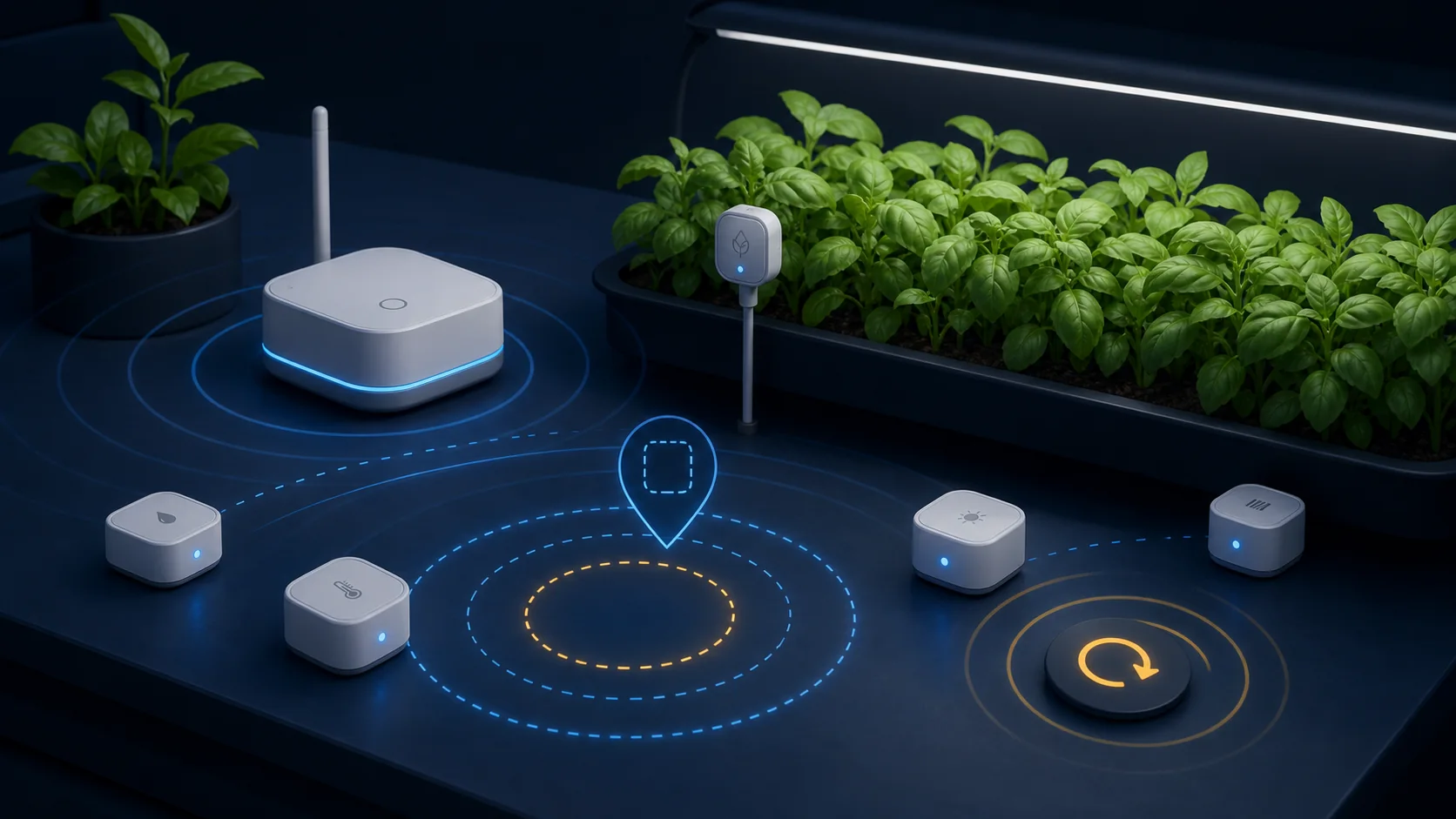
If the device has never joined
- Read the exact model from the enclosure and check it in the official Zigbee2MQTT device catalog. A similar shop name does not guarantee the same electronics.
- Install a known-good battery or verify mains power.
- Bring the device within 0.5–1 metre of the coordinator. First pairing at its final location in a distant greenhouse makes diagnosis harder.
- Enable permit join for a limited time. Zigbee2MQTT can also target a specific router for joining.
- Factory-reset the exact model according to its instructions. Pairing mode usually has a distinct flash pattern, not merely a lit LED.
- Read the log. A successful join reaches a completed interview, after which the model and capabilities appear.
The official sequence is documented under Allowing devices to join. If a battery device falls asleep during interview, wake it briefly with its normal button instead of factory-resetting it again.
Interview failed: identify the unfinished step
Check the battery, retry close to the coordinator and keep the device awake with its normal short button press when its instructions allow it. See the official interview troubleshooting FAQ for additional cases.
In your sensor's entry in bridge/devices, distinguish these two results:
| Field | What it confirms |
|---|---|
interview_state: SUCCESSFUL |
the device interview finished |
supported: true and the required definition.exposes |
Zigbee2MQTT knows the model and its capabilities |
A successful interview can coexist with supported: false and a missing definition. Check the exact model_id and model support; deleting it again will not add a converter. The fields are documented in the Zigbee2MQTT MQTT API.
If a working device disappeared
Do not delete it immediately. Preserve its friendly name, exact model, last message time, and power state, then check in order:
- Zigbee2MQTT itself is running and the coordinator still sees other devices;
- the missing device has power or a fresh battery;
- no powered smart plug or relay that routed its traffic was switched off;
- no Wi-Fi access point, SSD, USB 3.0 device, or other 2.4 GHz interference source was moved nearby;
- the device returns after one button wake-up or a brief power cycle.
linkquality is useful for comparison, but one number does not prove route quality. Repeatable messages at the final location matter more. Zigbee2MQTT recommends moving the USB coordinator away from the computer with a shielded extension cable and adding suitable powered routers where needed: improving range and stability.
If devices disappeared after a power outage
Separate a coordinator problem from powered-router and battery-device problems:
- confirm that Zigbee2MQTT started with the original
datadirectory and network database; - verify that the coordinator uses the expected USB port and
bridge/stateisonline; - restore power to smart plugs and relays that previously acted as mesh routers;
- allow routes to recover, then wake a battery sensor once with its normal button;
- compare
last_seenacross several devices — a whole branch disappearing together often points to one powered router; - consider re-pairing only after power and logs have been checked.
Do not create a new Zigbee network or delete the data directory as a quick test. A changed network key can require every device to be paired again. On Windows, also check whether the COM port changed after reboot.
Reading availability correctly
When availability is enabled, Zigbee2MQTT publishes online or offline to the device availability topic. Powered devices and sleeping battery sensors use different timeouts: a battery sensor is not expected to report every ten minutes. An overly short custom timeout therefore creates false alarms.
Check the default behavior in the Device Availability documentation. For irrigation, also apply a separate freshness limit to the actual measurement. An old soil-moisture value is unsafe even if the device has not yet been marked offline.
With availability enabled, the defaults are a 10-minute interval followed by a connectivity check for powered devices, and 25 hours without polling for battery devices. These are presence checks, not promised measurement intervals. Compare your configuration with the availability documentation before deciding that the sensor has disappeared.
Readings reach Zigbee2MQTT but not the application
If fresh readings arrive in Zigbee2MQTT, check their delivery to the application next:
- Home Assistant: the MQTT integration and Zigbee2MQTT's
homeassistant.enabledare enabled, and discovery is not disabled for this device. See the integration settings and per-device options. - GrowerHub: the connector reaches your existing Zigbee2MQTT installation, uses the correct local
base_topic, and imports the device into Settings. Assign its sensors to the greenhouse slots in the Farm builder. Follow the existing MQTT installation guide.
Connecting GrowerHub to an existing Zigbee2MQTT installation does not require pairing working sensors again. Follow one fresh measurement through the device, Zigbee2MQTT, MQTT and the application.
After removing a device from the network
Deleting an entity in Zigbee2MQTT does not always reset the physical device. It may still remember the old network. Use this sequence:
- close the previous permit join window;
- factory-reset the device;
- open a new permit join window;
- keep the device near the coordinator until interview completes;
- verify real readings before moving it to the final location.
After moving it, wait for several normal report cycles. If the sensor disappears again only at its final location, pairing works and the likely problem is coverage or interference.
What to collect for a useful diagnostic report
Record the sensor model, Zigbee2MQTT and coordinator firmware versions, the time of one failed attempt, and several log lines before and after the error. Note whether the device worked before and what changed before the failure.
For detailed logging, temporarily set log_level: debug under advanced in the Zigbee2MQTT configuration. Debug messages do not reach MQTT or the web interface by default: use the configured log file or process console. Restore the previous level after capturing the attempt. The official Logging guide explains the output options. Remove passwords, tokens and the network key before sharing an excerpt.
When not to use the device in an automation
Do not connect it to a pump, lighting, or ventilation rule if interview does not complete, a required property disappears, readings jump without a physical reason, or freshness is unknown. Establish stable monitoring first. The farm automation page shows how GrowerHub presents zones and stale data.
Final checklist
- the exact model is supported;
- power or battery is healthy;
- factory reset followed the model instructions;
- permit join was open only during connection;
- interview completed;
- actual
exposeswere verified; - messages remain stable at the final location;
- stale data blocks dangerous automations.
Following this order reveals whether the failure is pairing, model support, or the working mesh. For a new network, start with the coordinator guide and sensor examples. In GrowerHub's new-connection flow, joining opens when you select the three-minute pairing button after connecting the coordinator. The existing-installation flow imports devices already paired with Zigbee2MQTT.
To see how readings appear by zone, open the demo without an account and select a greenhouse's soil moisture value. Its virtual sensor history lets you explore the chart and interface before connecting your own network.