Already running Home Assistant, Zigbee2MQTT and sensors? Keep that installation and add GrowerHub for greenhouse zones, plants, history and automation. The supported path is a separate MQTT connector between your existing broker and GrowerHub. Your Zigbee devices stay paired to their current coordinator.
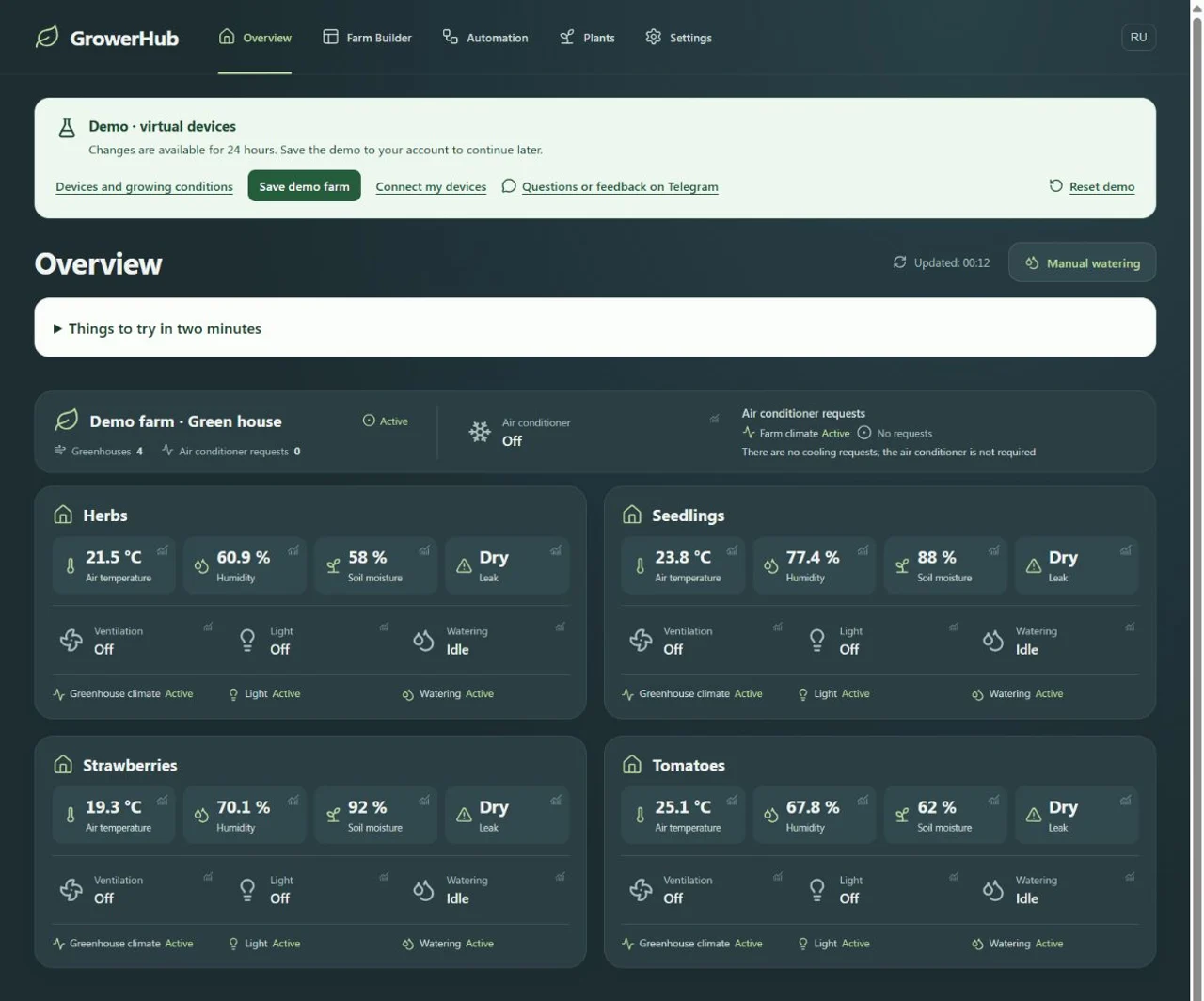
See the result first: open the demo without signing up. It contains four greenhouses, virtual devices and seven days of history. Open a temperature chart, try watering and change the environment. The demo uses the same application and automation rules as a regular farm; its readings are simulated.
What you need
| Your existing installation | What you add |
|---|---|
| Coordinator and paired Zigbee network | A coordinator connection in your GrowerHub account |
| Zigbee2MQTT and a local MQTT broker | A connector with a separate TLS connection to GrowerHub |
| Home Assistant entities and dashboards | GrowerHub greenhouse zones, plants, history and scenarios |
Run the connector on an always-on computer with Docker Compose: 64-bit Linux/Raspberry Pi, or Windows with Docker Desktop using Linux containers. This package is not a Home Assistant OS add-on; for that installation, use a separate Docker computer on the same network. Connector v0.2.5 uses regular Docker networking and does not require host networking.
This connects Zigbee2MQTT devices. If your Zigbee network uses ZHA in Home Assistant, this connector does not support it yet. GrowerHub does not automatically import arbitrary Home Assistant entities, ESPHome native API sensors, MQTT discovery definitions or old HA history. A sensor appearing in HA does not by itself make it compatible with GrowerHub.
Connector v0.2.5 supports full device names, including greenhouse/temperature. Additions and renames update routes automatically. Cached values remain last-known snapshots; they do not create new history measurements or refresh live connection time, including after MQTT reconnection.
Transport checks passed on an isolated Mosquitto 2.0.22 testbed with TLS, two connections and disconnects on both sides. These tests do not qualify a physical valve model for watering. Wait for a fresh publication from your real sensor and compare it with GrowerHub.
The connector shares inventory and readings of the entire selected Zigbee2MQTT network and allows commands back. There is no separate read-only or single-device mode. Keep your working Home Assistant automation during initial checks.
1. Keep your working Zigbee network
Check that the selected sensor is online in Zigbee2MQTT and reports fresh readings. Note the local broker address and port, the credentials for a connector user, and mqtt.base_topic from Zigbee2MQTT. The default topic is zigbee2mqtt; use your actual value.
Keep Home Assistant’s MQTT integration, the coordinator’s USB connection and device pairing unchanged. Leave equipment control in your current system while testing telemetry.
2. Download your bridge configuration
- Sign in to GrowerHub to open the first-connection wizard. If you have already completed it, open Settings → Connections and find “Add coordinator”. The same existing-Zigbee2MQTT setup is available there.
- Select “Zigbee2MQTT is already running”. This also applies to Zigbee2MQTT running inside Home Assistant.
- Enter a clear name and select “Create connection” in the wizard or “Create” in Settings.
- Under Local MQTT, enter the address, port, Zigbee2MQTT base topic, username and password.
- Download your personal
connector.jsonbefore refreshing the page. Local broker credentials are used in the browser to generate the file and are not sent to GrowerHub.
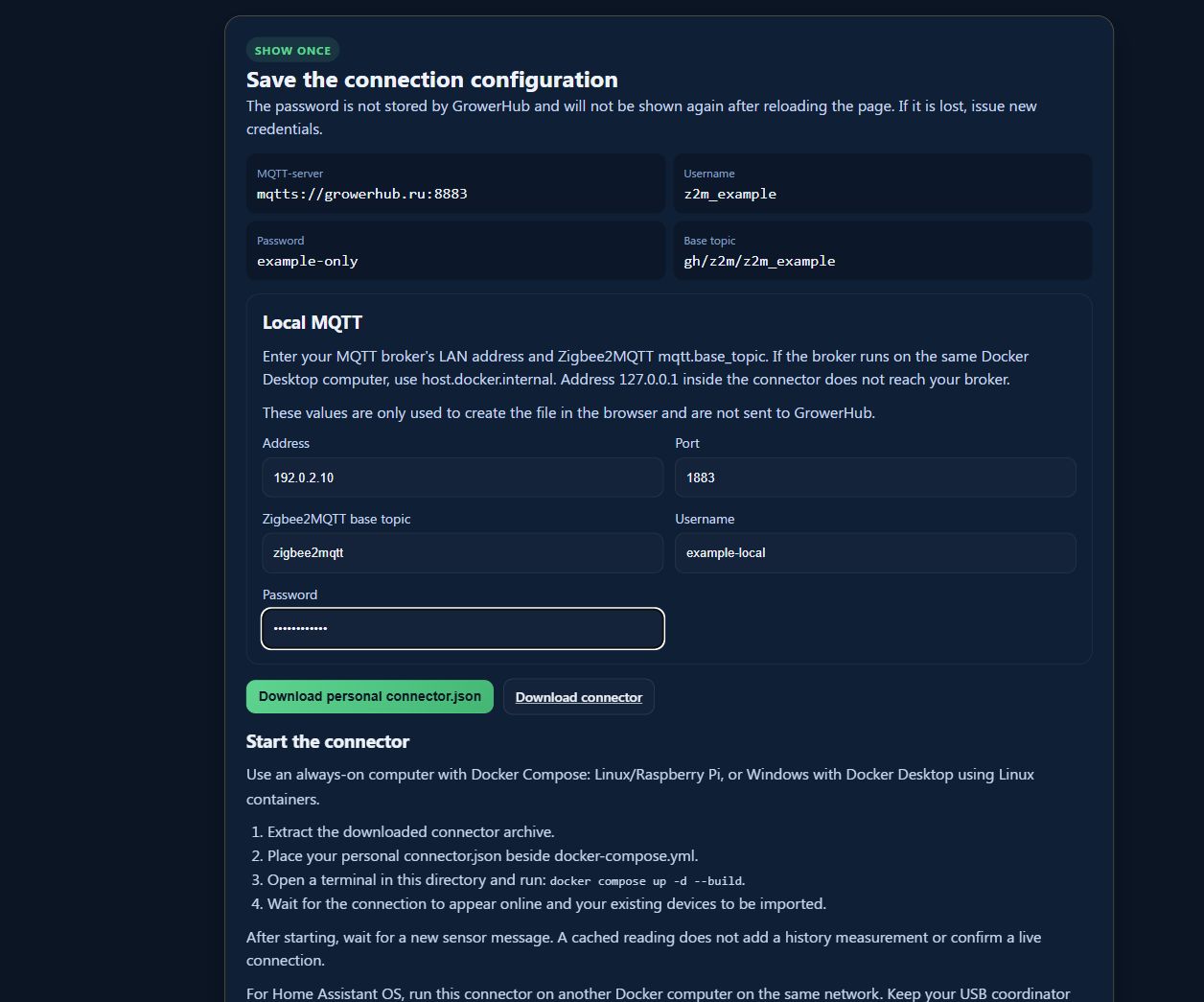
The screenshot shows example values. Use your own broker settings and the personal credentials issued by GrowerHub.
Inside the container, localhost or 127.0.0.1 refers to the connector itself. Use your MQTT server's LAN address reachable from Docker. If the broker runs on the same Docker Desktop computer, use host.docker.internal, as explained in the Docker documentation. An HA add-on container hostname may not resolve outside HA. The generated local connection uses TCP; the GrowerHub connection uses TLS on port 8883.
3. Start the connector
Download and extract the connector v0.2.5 ZIP. The directory contains docker-compose.yml, Dockerfile and connector sources; place your personal connector.json there. The example file is not your personal configuration. An existing Zigbee2MQTT installation needs this connector, rather than the package for starting a new coordinator.
Use a separate personal connector.json per connection. Unique client IDs let connectors share a local broker. Old v0.2.2/v0.2.3 packages using bridge.conf are not upgraded automatically and retain their limitations. For voluntary migration, stop the old connector, extract the new ZIP separately and prepare JSON. The README covers copying existing credentials locally without password rotation and rolling back. Do not run both versions with one client ID.
If v0.2.4 is already running, updating is optional: extract v0.2.5 into a separate directory and copy your existing connector.json. Run docker compose down in the old directory, then start the new package using the commands below. Only the connector stops; Home Assistant and Zigbee2MQTT keep running. Keep the old directory for rollback and run only one version at a time. Your credentials need no changes.
Version v0.2.5 preserves Zigbee2MQTT library version numbers when Zigbee2MQTT reports them. They help check device command compatibility; library configuration and secrets are excluded. Updating does not enable irrigation or qualify a physical valve model for watering.
Run these commands in that directory:
docker compose up -d --build
docker compose ps
docker compose logs --tail=80 connector
The first start downloads dependencies and builds the module. Look for local_connected, cloud_connected and ready after inventory arrives. If a connection fails, check the local broker address, access from Docker and outbound access to growerhub.ru:8883. For authentication failures, check local broker access separately from GrowerHub credentials. If the cloud password was lost, issue replacement connection credentials in GrowerHub and update the file. After editing it, run docker compose restart connector. Do not share passwords or the contents of connector.json.
4. Verify the first useful result
- Wait for the coordinator to show ONLINE and for your existing sensor to appear.
- Wait for a new sensor message in Zigbee2MQTT after starting the connector and confirm that it reaches GrowerHub. The values should match; a fresh GrowerHub timestamp alone is not enough. Battery sensors do not necessarily report every second.
- Create your first greenhouse and assign the sensor to its slot in Farm constructor.
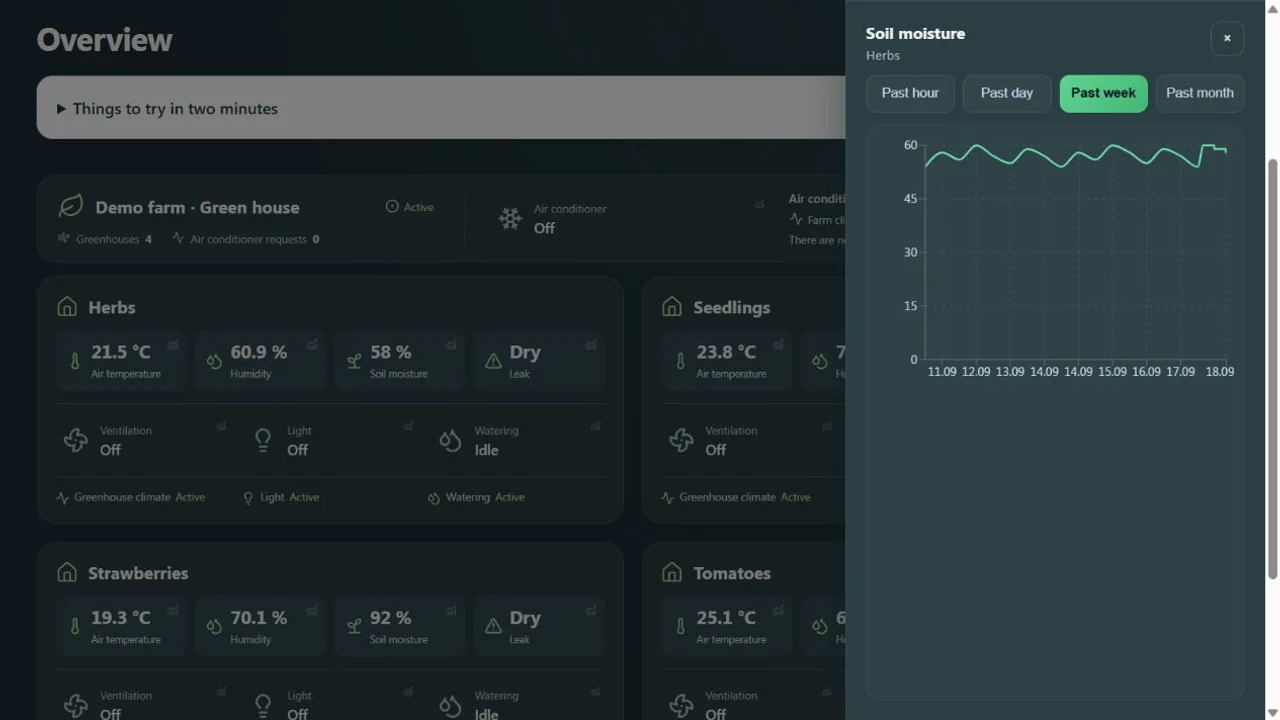
- Open the sensor chart from Overview. GrowerHub history starts when telemetry arrives; existing HA history stays in HA.
Choose which system controls the equipment
The connector shares known devices’ state and availability, inventory, bridge state, sanitized version/coordinator information and supported command responses. Broker configuration, passwords, Zigbee network keys, logs, discovery and command echoes are excluded. Return commands are /set, /get, pairing and renaming. Ambiguous device names are rejected with diagnostics. Commands are not queued or repeated after a disconnect; check actual state if their result is unknown. See the connector README.
Use one automatic controller per actuator. For the current pilot, keep that controller in HA until fresh readings are verified and you choose which automation to migrate. An ON/OFF command alone does not qualify a Zigbee valve for GrowerHub irrigation: it needs a verified model and an autonomous timer that closes it when connectivity is lost. No physical Zigbee irrigation models have passed that verification yet. A valve can provide state and history without being a supported watering actuator.
GrowerHub server scenarios need connectivity to the equipment. Local HA rules can operate without the cloud when that is the chosen control arrangement.
Disconnect without changing Home Assistant
Run docker compose stop connector in the connector directory. Verify that sensor readings still arrive in Home Assistant. Revoke that GrowerHub connection when disconnecting permanently. Archiving its coordinator in GrowerHub does not remove the Zigbee network from your hardware.
The first result is one real sensor with fresh readings in your greenhouse. You do not need to configure the whole farm at once. Ask for help in Telegram with your coordinator model, where Zigbee2MQTT runs and the step where you got stuck.