One shelf holds rooting cuttings; another holds growing seedlings. They still share the same lighting schedule, but you would like to separate it. You can adjust the settings yourself or start by telling the assistant what you grow, which lights are connected and what you want to change.
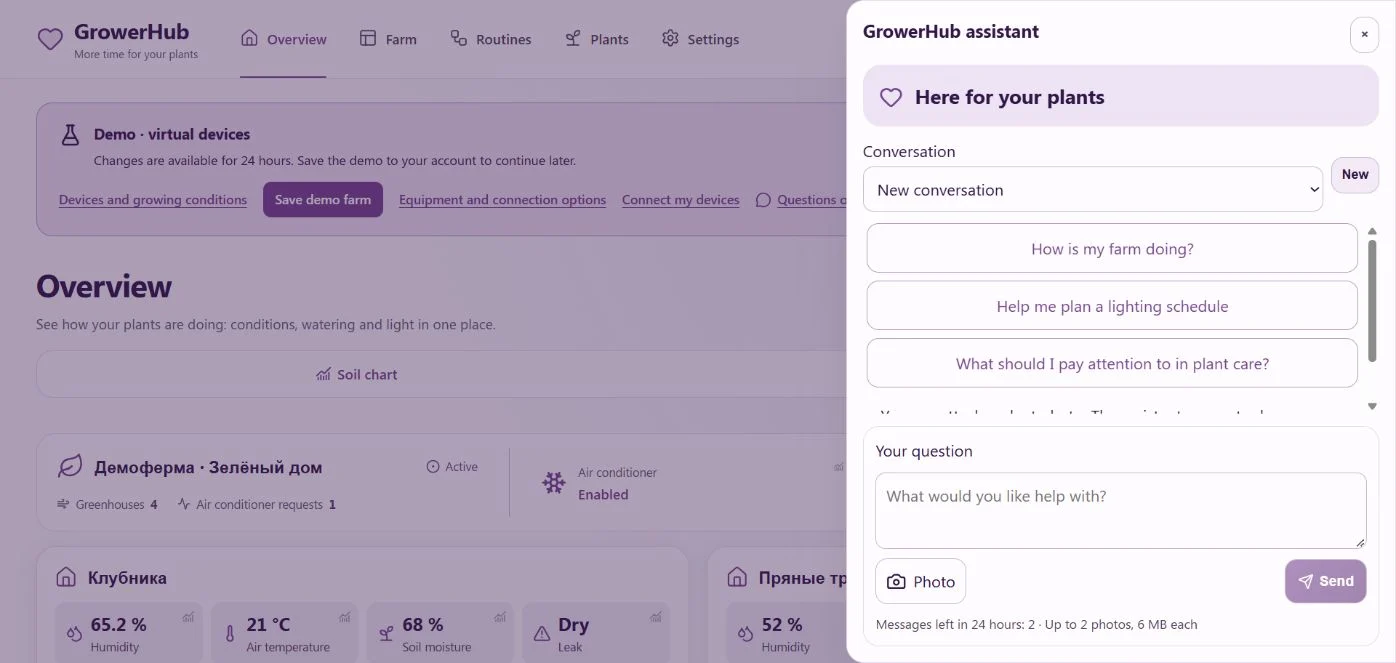
The assistant is part of GrowerHub. On a computer, the Assistant button opens a side panel; on a phone, it opens a dedicated screen. It can review your farm, explain readings, help record care and prepare scenarios. You decide which changes to apply.
Start with an ordinary question
Open the app and select Assistant. Try:
- “How is my farm doing? What needs attention?”
- “My pelargonium’s lower leaves are turning yellow. What should I check first?”
- “Show how my light’s energy use changed over the last day.”
- “Help me change the lighting hours on the seedling shelf.”
Name the plant or greenhouse when you have several. The assistant only reads your own space. Real farms and demo farms have separate conversations and devices. Try the demo without operating any real hardware.
The screenshots show the working interface with a practice conversation, rather than an assessment of a particular plant.
Add a photo for context
Attach up to two JPEG or PNG photos, each up to 6 MB. Take one photo of the whole plant and another of the affected leaf in normal light. Describe where the pot stands, when you last watered it and what changed recently.
A photo shows appearance; moisture inside the pot and root condition need a hands-on check. A useful next step may be to check the substrate, look under the leaf or compare new growth with an older photo. If you already keep a journal, ask the assistant to take its entries into account.
Create your own scenario
- Describe the outcome and name the greenhouse: for example, “Turn on the seedling shelf lights in the morning and off in the evening.”
- The assistant reviews available devices and prepares a proposal. Specify the time and weekdays where needed. You can ask it to save the scenario disabled.
- Read the card: when it runs, which conditions it checks and what it does. Check the devices and watering duration where applicable.
- Select Confirm to apply that specific version. Do not apply keeps the settings as they are. Saying “yes” in a message does not replace the confirmation button.
- Open Routines → My routines to check readiness, see recent runs, disable a rule or restore an older version in a disabled state.
Scenarios support schedules, intervals and changes in readings. They can check a plant’s stage, the time of day and data freshness. Actions include supported device controls, bounded watering sessions, pauses and notifications. Notifications require a connected Telegram account. Demo rules let you check saving and run history; they do not send messages to a real Telegram chat.
If another active scenario already controls the channel, GrowerHub shows the conflict. Decide which rule should control it before enabling the new one. If the underlying settings change, ask for a fresh proposal.
Saved scenarios run without calling the AI. A temporary chat outage does not stop automation. After a device command, check its actual state on the farm: sending the command and executing it are separate steps.
Continue in Telegram
Connect @GrowerHubCareBot in Settings → Notifications, then confirm your Telegram profile in the app. In assistant settings, enable Chat with the assistant in Telegram and select the conversation you want to continue.
The bot shares its history and account quota with the app. Proposals arrive with confirmation buttons; longer cards link back to the app for review. Ordinary care reminders and their Done button continue to work.
You can also choose a daily or weekly farm summary and a delivery hour in your account’s time zone. The summary is saved in chat and sent to the connected Telegram account. When AI is unavailable or the shared budget is exhausted, a plain summary with backend-calculated figures is delivered instead.
When a reply has to wait
Accounts can send up to 30 messages per day; guest demos allow up to three. A shared service budget also applies, so fewer replies may be available at some times. The interface shows your remaining quota or when to try again. If delivery is uncertain, use Check submission instead of repeatedly sending the same question.
An external AI service processes messages, photos and the relevant farm data to prepare replies. See the privacy policy. Do not paste passwords or connection keys into chat.
You can begin with one plant and a care question. Hardware is needed only for actions that a light, smart plug or pump should perform.
The system owner's personal assistant
The GrowerHub owner can choose their Codex model and reasoning effort above the conversation. The list comes from the installed client; Refresh models reloads it. The choice is saved for the conversation, including Telegram. Switching models preserves the effort when the new model supports it.
In the administrative conversation, the owner can ask about registrations, users' farms, plants, device readiness and assistant spending. This is a separate permission for the system owner. Regular users can access only their own plants and equipment. Administrative reading does not permit changing another user's farm, retrieving secrets or running server commands.
Under Settings → Notifications, the owner can see the installed and latest stable Codex versions. Checks run every six hours; each new release produces one notification in the confirmed Telegram chat. Installation is a separate operation with verification and rollback.