After watering or pruning, filling out a form is often the last thing you want to do. It can be easier to send a photo and a few words while everything is fresh in your mind. The GrowerHub assistant can turn that message into a journal entry, add a plant or update its details.
No devices are required. You can keep a journal for a few windowsill pots and choose a greenhouse later.
Add a plant
Open the assistant and try:
Add rosemary to the Tomatoes greenhouse. I bought it as an adult plant and do not know its planting date. Add a note: a cutting from my mother.
The assistant finds the greenhouse and shows a proposal with the name, notes, location and unknown planting date. Review it and select Confirm. The plant appears in Plants, with an Open plant journal link below the saved result.
If you have no greenhouse, say so: “Add rosemary without a greenhouse, location: south-facing window.” A text location helps organise the diary without connecting equipment.
For an existing plant, ask “Move my rosemary from the first greenhouse to the second” or “Add a note that it was repotted into a two-litre pot.” The proposal shows the old and new values. If several plants share a name, the assistant will ask which one you mean.
Send a photo from Telegram
- In GrowerHub, open Settings → Notifications, connect @GrowerHubCareBot and confirm your Telegram profile on the website.
- In assistant settings, enable Chat with the assistant in Telegram and choose the conversation to share with the app.
- Send an ordinary photo with a caption such as “Save this in my rosemary journal. I noticed new growth today.”
- Review the plant, text, date and photo count in the proposal, then select Confirm. Telegram service buttons currently use Russian.
- After the saved message, follow the journal link or find the plant in the app. The same entry and photo will be there.
The screenshot shows a practice conversation in the working interface. You can review the image and destination before confirming.
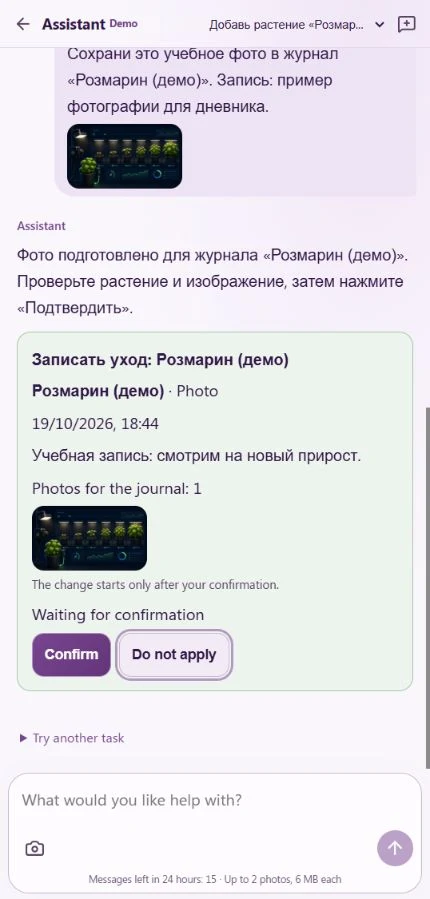
If the plant does not exist yet, confirm its creation first, then ask to save the photo in its journal. You can continue the same conversation; immediately after creation, reattaching the photo is usually unnecessary.
In the app, use the photo button below the message field. JPEG and PNG are supported, with up to two images of 6 MB each per message. In Telegram, send a photo rather than a document. The saved copy belongs to the journal and remains there after chat history is cleaned up.
Look back at previous care
Try asking:
- “When did I last feed my rosemary? Check the journal.”
- “Find my pruning records from October.”
- “Change yesterday’s pruning note to: two dry stems removed.”
The assistant searches your records by words, care type and date. Editing a manual entry also requires confirmation. Changing only its text or adding a photo preserves its date. Actual equipment history can be read but cannot be rewritten as manual care.
Start in the demo farm if you want to practise creating a plant and reviewing proposals first. A real Telegram chat connects to your main account.