When several pots look alike, a familiar picture makes the right journal easier to find. GrowerHub now has a small collection of lush tomatoes, strawberries, fresh herbs and delicate flowers in warm cream pots.
Every picture has a plant name, and every plant has four named variants. Start with a sprout, move to a young plant, then choose flowers or a harvest. Leafy plants have their own progression, from small leaves to a full, lush plant.
Choose a picture
- Open Plants and press the pencil on a plant card. The same choice is available when you add a plant.
- Expand Plant picture. The names appear under the illustrations: tomato, cucumber, strawberry, rosemary, basil, lettuce, pepper, petunia, pelargonium and monstera.
- Choose any picture you like. It does not have to match the plant type in your profile.
- Under Stage in the picture, choose one of the four illustrations. Tomato, for example, has Sprout → Young plant → Flowering → Harvest.
- Press Save. Your choice stays with your account, including when you sign in on another device.
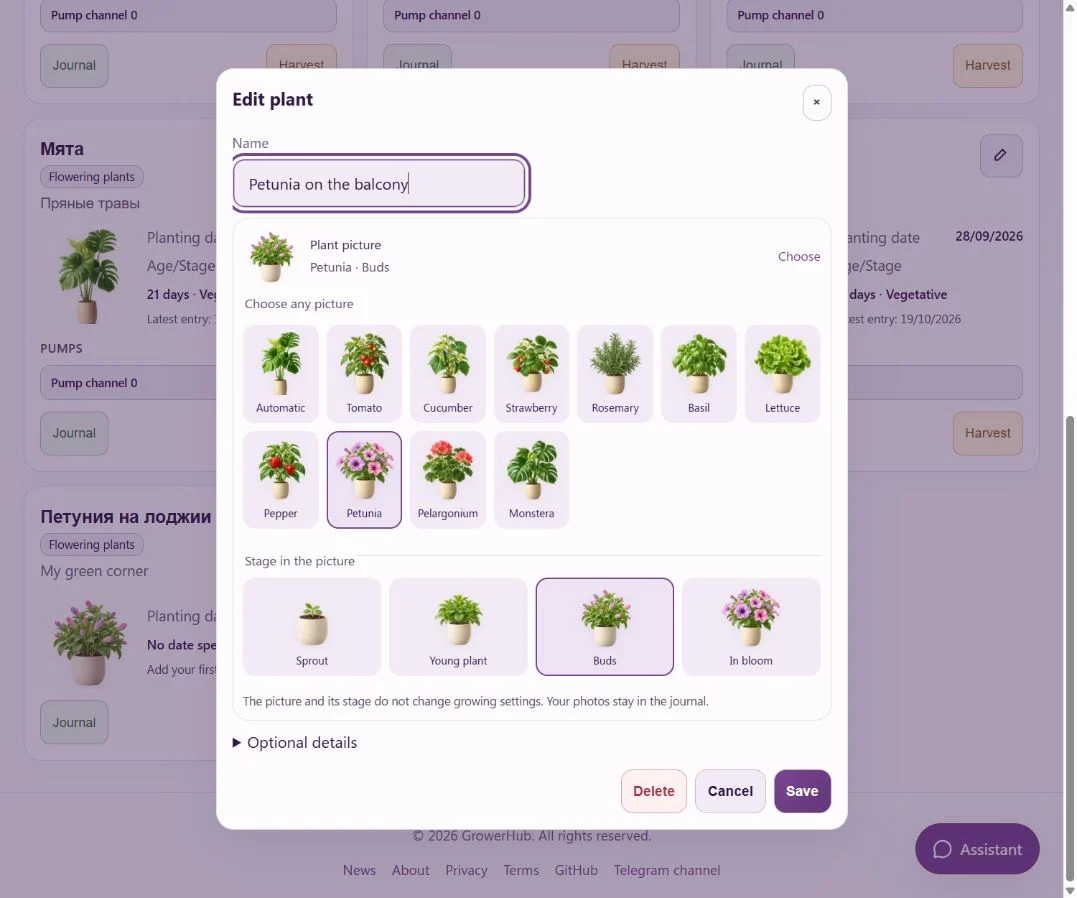
To use the previous picture again, choose Automatic. GrowerHub will pick it from the plant type and available growth stage or age.
Let the picture grow with your journal
Petunias and pelargoniums move from young plants to buds and open flowers. Strawberries get blossoms and then berries. Rosemary, basil and monstera gradually develop fuller foliage. Lettuce becomes a loose young rosette, then fills out for harvesting.
The selected picture changes when you choose a new variant. As your plant grows, open its profile and select the next one. This personalises the journal; the growing stage used by routines, lighting schedules and watering settings stays separate.
The same familiar card, with or without equipment
A plant added by the assistant looks the same as one added through the form. Its name, picture, location and Journal button stay in familiar places. The latest entry date and next reminder help you remember what you did and what needs checking.
If equipment is connected, the same card also shows its sensors and pumps. Plants without equipment have no empty device sections. You can keep a care journal on its own.
Your real photos stay in the journal
An avatar does not replace or delete journal photos. The chosen illustration identifies the plant at the top of its page; the timeline still shows its real leaves, flowers and growth by date. See how to keep a photo diary.
The whole plant fits both small cards and the journal header. Separate lightweight sizes with transparent backgrounds are prepared for phones and larger screens, so the app does not need to download the large originals.
You can try the choices on the demo farm. For your own journal, simply add a plant: no sensor or hub is required.