
One temperature sensor beside your plants is enough for a first setup. You can start by opening the demo farm without hardware, exploring charts and trying virtual watering before buying a pump or a complete greenhouse kit.
Physical devices can use Zigbee2MQTT or the PushOk cloud pilot. A Zigbee logo alone does not establish compatibility: the hub's software and connection method matter.
Choose a starting point
- Zigbee2MQTT already runs, perhaps alongside Home Assistant. Keep your hub and connect the existing network through a local MQTT bridge. Having Home Assistant does not necessarily mean you use Zigbee2MQTT.
- An always-on computer is available. Use a USB coordinator and one compatible sensor. Zigbee2MQTT runs on that computer; new readings stop reaching GrowerHub when it is off.
- You want one box without a separate computer. The cloud route was tested on PushOk POK100v2. See the hub and first-purchase checklist. A hub with built-in Zigbee2MQTT, such as SMHUB Nano, is another option, not yet physically tested with GrowerHub.
- You already own PushOk. Connect it over the internet using the hub ID and pairing button. No separate computer or Home Assistant is needed. We are starting with POK100v2; see the steps and limits below.
- You own ZS-EHT-54P2 or 54P7. Join a trial connection. It replaces the USB radio, but still needs a computer running Zigbee2MQTT.
ZS-EHT-54P2 / 54P7: an affordable coordinator that needs a computer
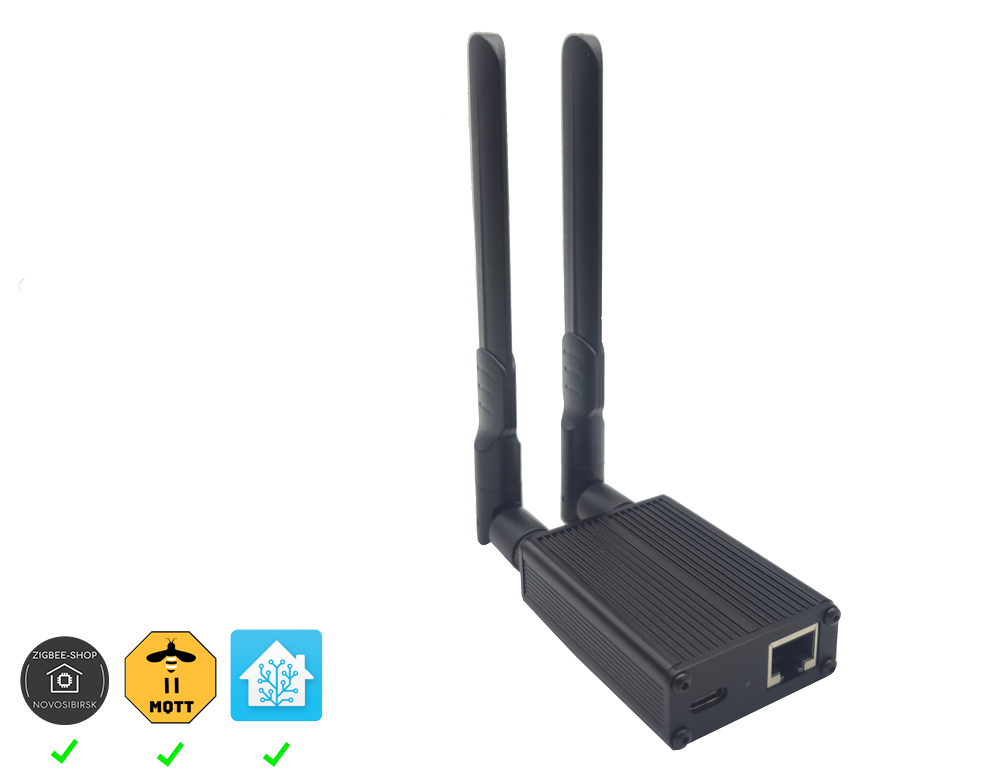
The seller uses the same image for 54P2 and 54P7. Check the label for the exact chip and revision. Source: ZigBee-Shop.
Its documentation makes it a candidate for the Zigbee2MQTT path; we have not physically tested it with GrowerHub. Unlike SMHUB Nano, it is a network radio adapter, not a computer with Zigbee2MQTT inside.
| Version | Chip listed by the seller | Price checked on 28 September 2026 |
|---|---|---|
| ZS-EHT-54P2 | CC2652P2 | RUB 2,999 |
| ZS-EHT-54P7 | CC2652P7 | RUB 3,250 |
These prices exclude the computer, sensor and shipping. The difference is RUB 251; check the exact revision and firmware before choosing.
The seller's guide describes Ethernet, Wi-Fi and USB, USB-C power, the zs-eth.local web console and an external ZHA or Zigbee2MQTT installation. It shows a separate splitter for PoE; built-in PoE is not confirmed. Standalone MQTT sensor reporting is not documented.
The proposed first connection:
- Connect the coordinator to your home network, preferably over Ethernet, and provide power.
- Run Zigbee2MQTT on an always-on computer. Home Assistant is optional. Its
serialsection points to the radio; the MQTT section contains GrowerHub settings. Zigbee2MQTT supports network adapters and the Z-Stack adapter typezstack. Read the actual TCP port from your device settings. GrowerHub's USB package does not automatically configure this network coordinator. - Check one compatible sensor, fresh readings, history and restart recovery together.
If Zigbee2MQTT already runs, start with the existing local MQTT bridge. Preserve its broker and paired sensors. The bridge permits commands back to devices; it is not a separate read-only mode. Automations are enabled separately.
Already own ZS-EHT? Choose “Connect ZS-EHT” on the getting-started page or in connection settings. It opens an invitation to discuss the pilot in Telegram; a request arrives only after you send a message. Discuss a purchase first, and check other chips or revisions separately.
SMLIGHT SMHUB Nano: the computer is inside
According to SMLIGHT's product documentation, SMHUB Nano MG24 runs Zigbee2MQTT on the hub and is configured in a browser. A separate Home Assistant installation or Raspberry Pi is unnecessary. SMLIGHT documents connecting it to an external MQTT broker.
That makes it a promising candidate for GrowerHub's existing Zigbee2MQTT connection. We have not tested a physical SMHUB Nano with GrowerHub. Encrypted connectivity and settings persistence after a restart still need device testing. Discuss your proposed kit and trial connection before purchasing.
As a price reference, Domadoo lists the hub at €55.99, checked on 27 September 2026. This is a retailer's hub price, not a delivered kit quote for your country. Check the sensor, power supply, cables and shipping separately.
The proposed first connection
This sequence is for a new, separate SMHUB network and remains to be verified in a pilot:
- Connect power and your home network, then open the hub's page in a browser.
- Create a connection in GrowerHub. Copy its MQTT server, username, password, base topic and Client ID into the hub's Zigbee2MQTT settings. The server address alone is not enough.
- Pair one sensor using its manufacturer's instructions.
- Assign the readings to a greenhouse or home growing area in GrowerHub. Check that measurement times advance and history appears.
Transfer only the MQTT settings. Replacing the entire hub configuration with a USB-coordinator template can overwrite its radio and web-interface settings. Keep the encrypted connection: Zigbee2MQTT supports MQTT over TLS.
If the SMHUB already serves Home Assistant or other systems, plan a local bridge first: changing its MQTT server may interrupt existing integrations. A GrowerHub connection forwards the selected network's device list and readings and permits commands back to it. There is currently no separate read-only mode limited to one sensor. Automations are enabled separately by the user.
PushOk: connect over the internet without a separate computer
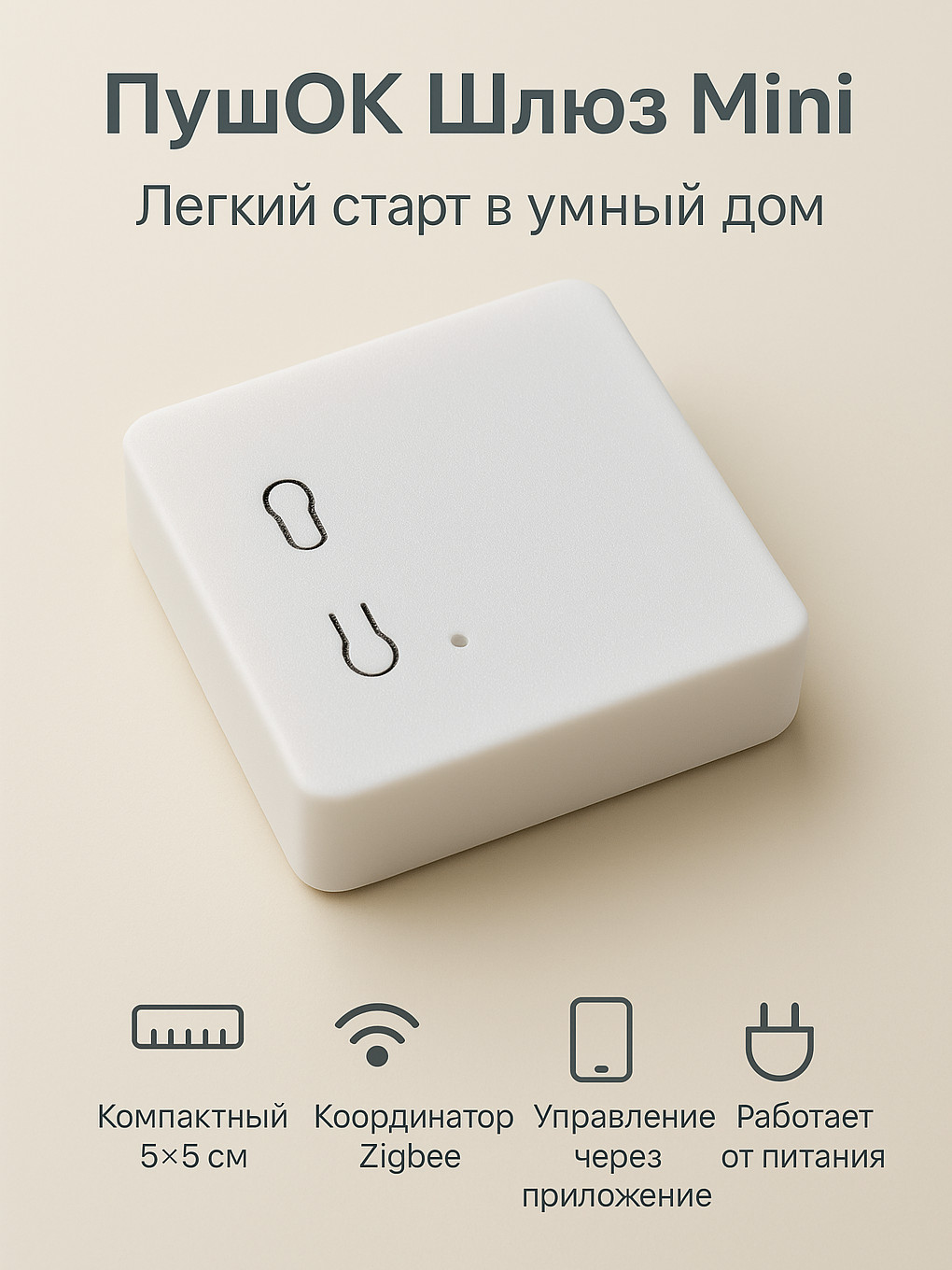
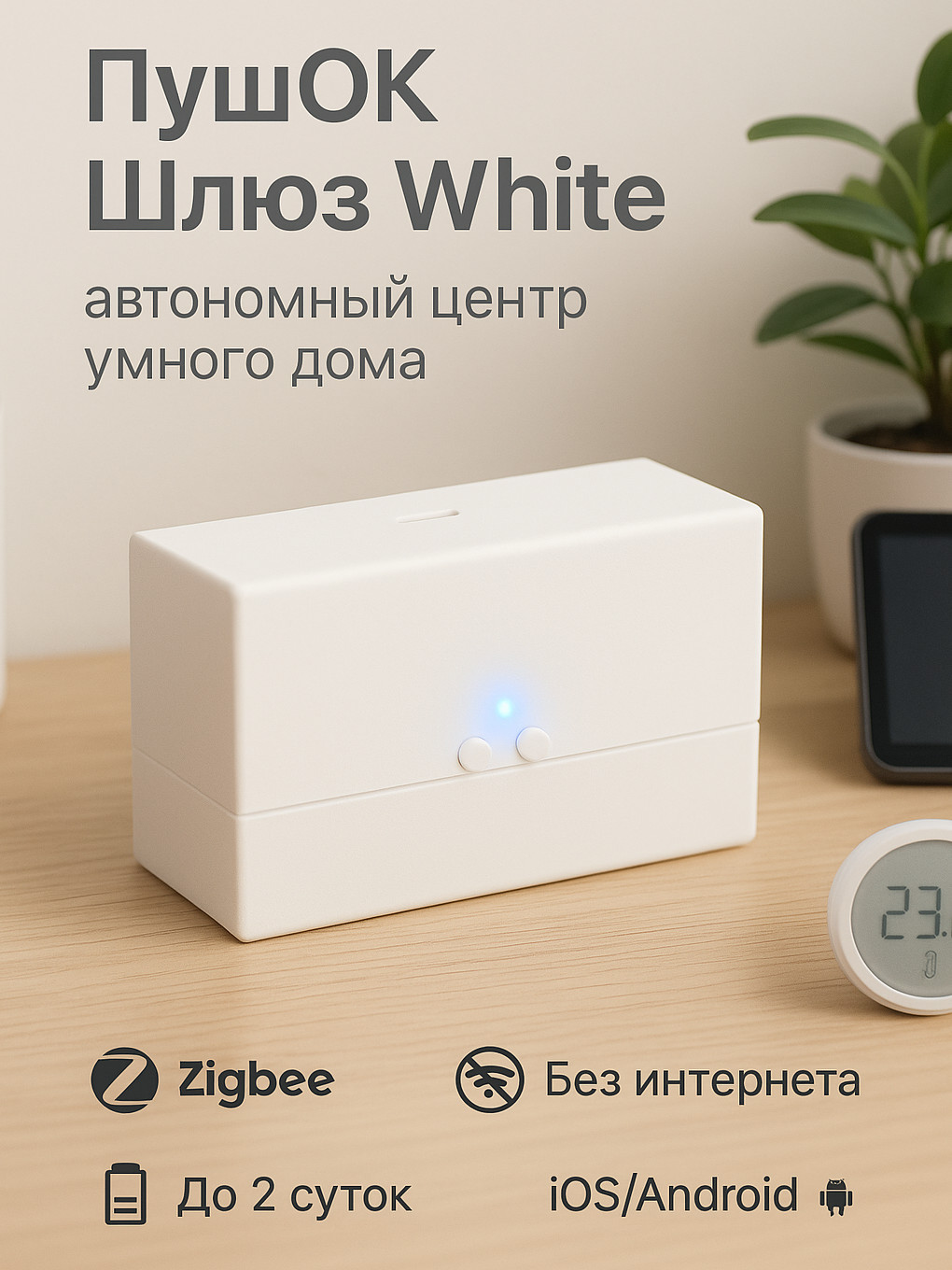
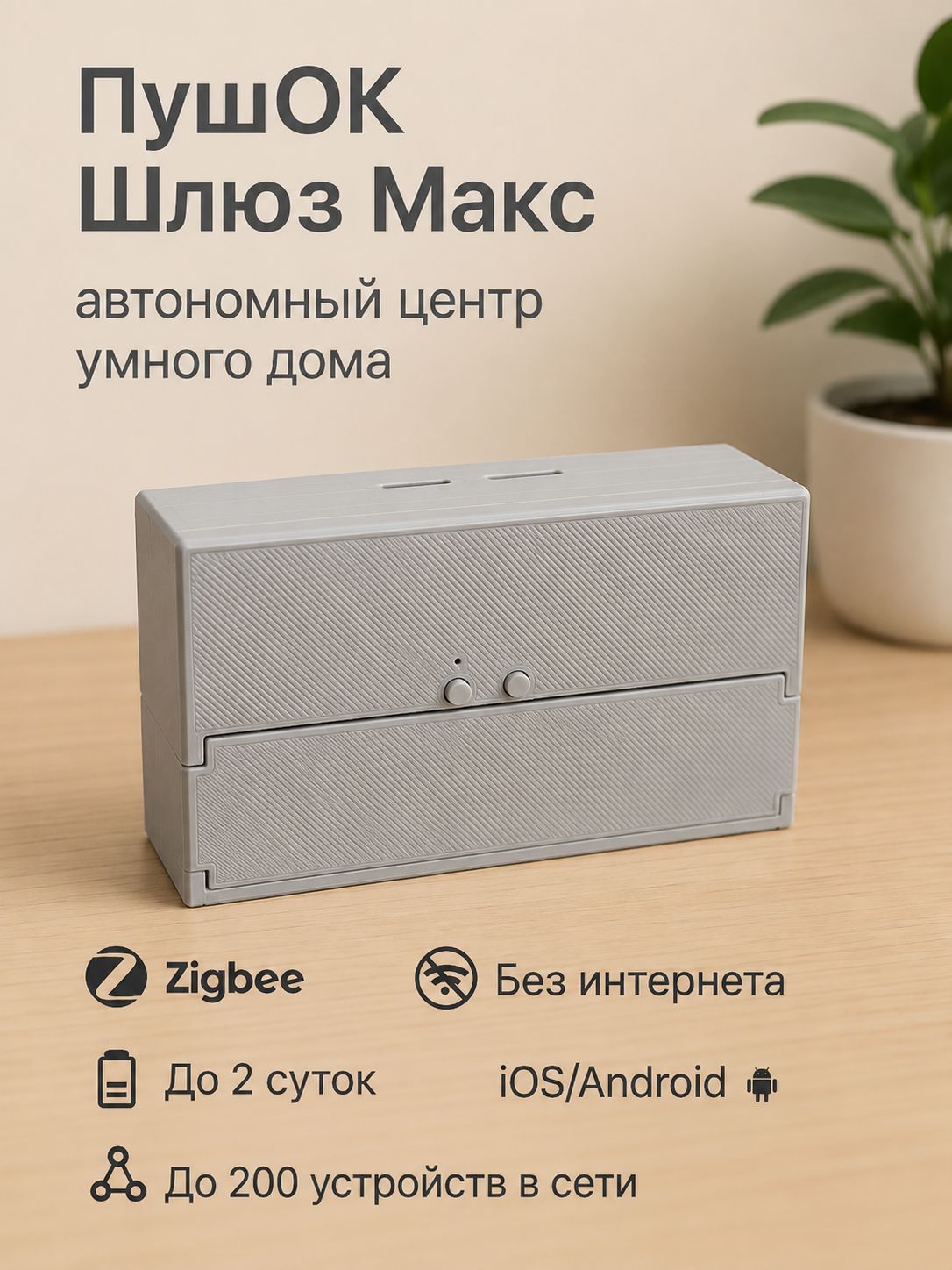
Product images from the manufacturer's listings. Cases may vary between revisions; check the label or the Upravlyator app for the exact model. Source: PushOk.
The cloud pilot is available in GrowerHub. On POK100v2 with firmware 95 and a Zbeacon TS011F plug, we verified initial pairing directly from the app over the internet, readings, on/off commands confirmed by the device, and recorded history. After an induced cloud connection interruption, it reconnected automatically in about 35 seconds using the same access, with the plug remaining off. This was one test, not a guaranteed recovery time for every outage. Mini, Max, other revisions and sensor models require separate checks. The images above help identify hubs; they do not mean every pictured model has been tested.
Prepare it in Upravlyator
- Set up the hub's Wi-Fi and pair one device using PushOk's instructions. No firmware replacement is needed.
- Turn off Wi-Fi on your phone and check that fresh readings arrive over mobile data. You can then turn Wi-Fi back on.
- Tap the hub name at the top of Upravlyator, then the gear beside it. On the hub information screen, copy the hub ID with its copy button. Example:
pushok-A1B2C3-1234. A display name such asPuxZB, MAC address or home IP address is not the ID GrowerHub needs.
Connect to GrowerHub
- Sign in and open Settings → Connections → Connect PushOk. The first-connection wizard offers the same option.
- Paste the ID, give it a recognizable name and confirm access. All devices on this hub will appear in your account; GrowerHub can read their values and send supported commands. Automations do not start automatically.
- Briefly press the hub's pairing button with the indicator twice. While it flashes, press Button pressed — connect in GrowerHub. You do not need to copy phone keys, Wi-Fi passwords or router settings.
- Wait for the success message and open Settings → Devices. Check the state and last-update time. Add and rename Zigbee devices in Upravlyator; GrowerHub refreshes its list automatically.
- Assign available sensor readings to a growing area in the farm builder. GrowerHub history starts accumulating after connection; earlier Upravlyator history is not imported. Confirm fresh readings before choosing an automation.
You can close the GrowerHub window: pairing continues on the server. To check its status again, select Continue PushOk connection in the setup wizard or beside this hub in connection settings. You do not need to enter the ID again or create another connection.
If the hub's pairing window expires and an error appears, press its button twice again and select Retry PushOk pairing. You do not need to create a new connection for every attempt. For help, use PushOk help and my request in connection settings to leave contact details, edit or withdraw an earlier request.
Before enabling automation
- The hub needs internet access and PushOk's cloud service. GrowerHub's server does not access your home network. Its automations do not run locally on PushOk during an outage; queued commands are not sent after reconnection.
- Keep automation for a particular appliance in one system to avoid conflicting commands.
- A sensor being supported by the hub does not confirm every function in GrowerHub. Unknown parameters are not presented as available controls.
- The test TS011F is not approved for automatic watering. Valves and pumps require separate checks of their local timer and safe stopping after connection loss.
- To disconnect, archive the coordinator in GrowerHub. The server stops connecting and deletes its key; recorded history remains. You can remove GrowerHub's separate access on the hub itself through Upravlyator.
Already own PushOk? Try connecting one device and tell us how it went. If you have not bought a hub, discuss the exact model and intended use first. This is an independent GrowerHub integration; no manufacturer partnership is claimed.
Distinguish the different types of hub
SMHUB Nano and SLZB-06 are different products. The standalone Zigbee Hub mode on SLZB uses its own MQTT API, rather than Zigbee2MQTT's format. Its documentation also specifies TCP-only connections. Entering the GrowerHub address in that mode is not sufficient.
For Tuya, Aqara and other hubs, check the exact model and available integration. Labels such as Zigbee 3.0, MQTT or works with Home Assistant do not replace this check. Verify the sensor's exact model in the Zigbee2MQTT device catalogue as well.
From a first chart to automation
Start by observing temperature or humidity. Once readings arrive reliably, choose one useful automation and verify its operation. GrowerHub automations run on the server and require connectivity to it; a hub's local capabilities do not make GrowerHub automations run locally.
For watering, separately check the specific valve or pump and how it stops after a connection failure. Read the automatic watering safety guide before enabling it. If you do not own hardware yet, try the demo farm and choose a kit around one useful task.